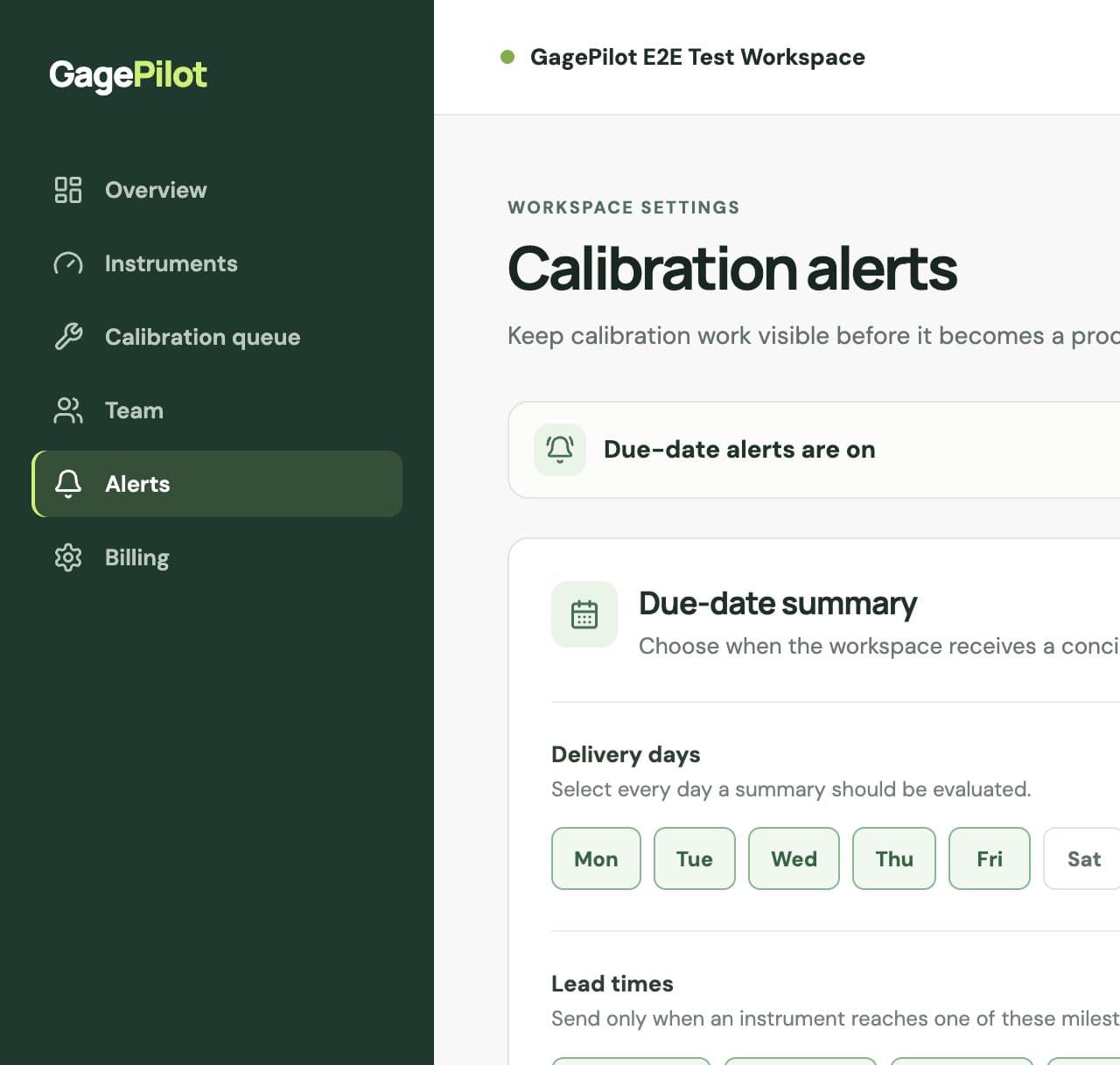
Configure the due-date summary
- Open AlertsOnly workspace owners and admins can change alert settings.
- Choose delivery daysSelect the weekdays on which the summary should be evaluated.
- Choose lead timesUse milestones such as 30, 14, 7, 1 day, or due today.
- Include overdue workKeep overdue instruments visible in every summary until the record is updated.
- Choose recipientsInclude workspace members with reminders enabled, instrument assignees with an email address in Owner / assignee, or additional email recipients. A department name alone is not an email recipient.
Failed calibration alerts
When out-of-service alerts are enabled, a failed calibration sends an immediate email to workspace owners, admins, and configured additional recipients. The instrument assignee is included only when assignee notifications are enabled and an email address is recorded in Owner / assignee. The register marks the instrument out of service regardless of whether notifications are enabled.
Make alerts actionable
- Assign an owner or department to instruments that require follow-up.
- Use a 30-day lead time when outside-lab scheduling takes time.
- Keep overdue items included until the calibration record is complete.
- Review additional recipients when responsibilities change.